
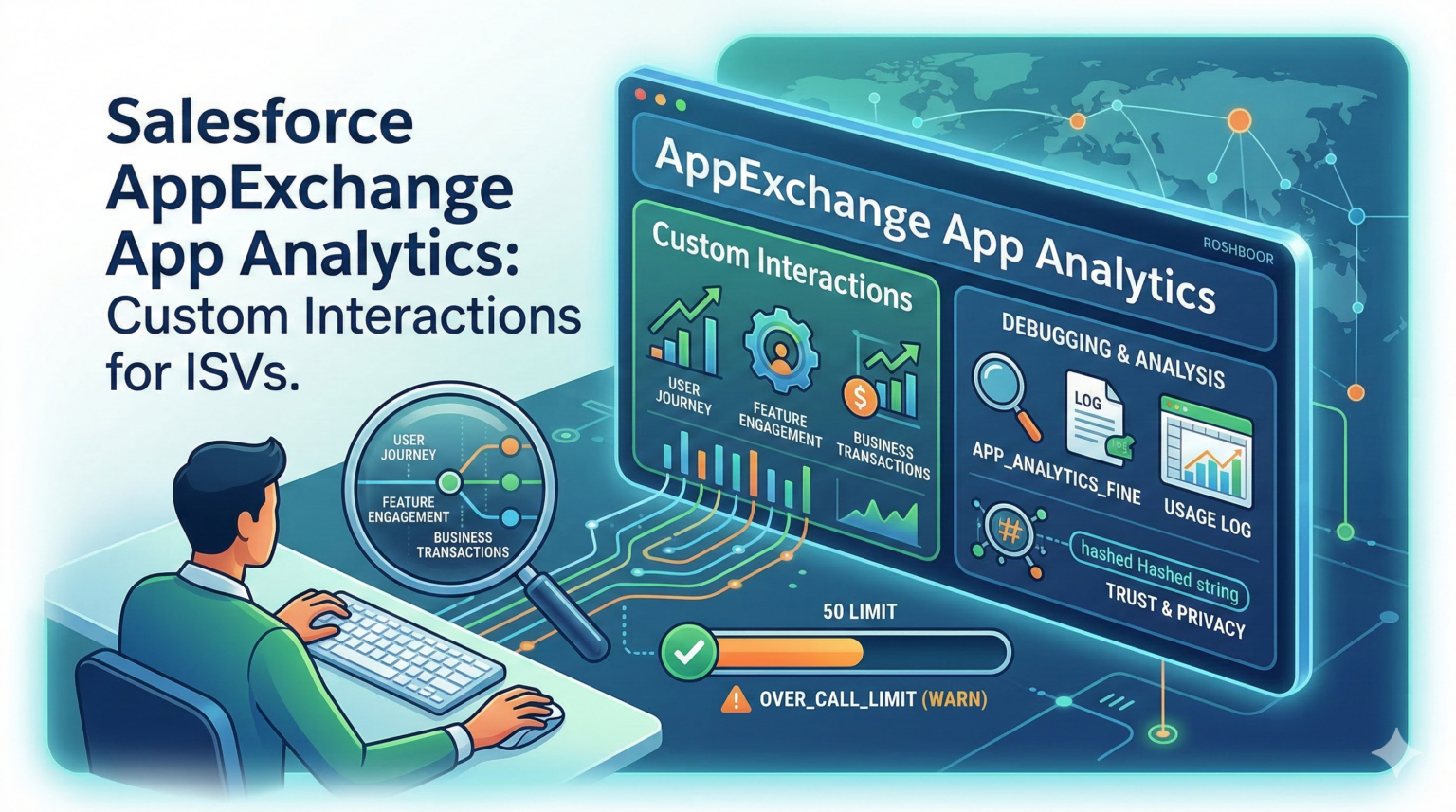
If you build managed packages for the AppExchange as an ISV partner, you probably already use AppExchange App Analytics to track basic usage, such as when managed Apex classes run or Lightning components are clicked. This data helps you plan your roadmap and spot customers who might leave, but sorting through so many daily events to find the right business metrics can feel overwhelming.
To help with this, Salesforce released custom interactions, a powerful feature available as of the Spring ’24 release.
What are custom interactions?
Now, Salesforce lets you fully track the user interactions that matter most in your managed packages using Apex. With the new logCustomInteraction method in the IsvPartners.AppAnalytics namespace, you can decide exactly what to log and how detailed the data should be.
To track an event, you need to use an interactionLabel, which must be an Apex enum value defined in your managed package. You can’t generate it dynamically or use one from another package. You can also include Apex IDs or UUIDs to group related interactions. Since trust is Salesforce’s top priority, these IDs are always hashed and tokenized to keep customer data safe.
Why you need it: top use cases
There’s no set limit on how many labels you can use in your package, so you have a lot of flexibility. You can create specific enum labels to:
- Track user journeys and see exactly how people move through your app.
- Find out which Lightning web components or main features get the most engagement.
- Group similar business transactions to better understand your main business processes.
- Spot unused features so you can safely remove old custom objects that are no longer needed.
- Track an Apex process across both synchronous and asynchronous transactions.
Important limitations and best practices
You should use programmatic logic to log interactions where it makes sense, but keep in mind one key limit: Salesforce only logs up to 50 interactions in a single user request.
If you go over the 50-interaction limit, your managed package will still work and customers won’t see any errors. But any extra interactions won’t be sent to your App Analytics data. Instead, they’ll trigger an OVER_CALL_LIMIT error code. To avoid this, don’t call logCustomInteraction inside a loop.
How to debug and analyze your data
You can only access package usage logs if your managed package is running in a sandbox, trial, or production org, which can make early debugging a bit tricky. To test your setup during development, set your Apex debug log level to FINE. Then, look for APP_ANALYTICS_FINE, APP_ANALYTICS_WARN, or APP_ANALYTICS_ERROR messages to make sure your interactions are working as expected.
After you instrument your code, you can send the new version to customers with push upgrades. As customers use your package, you can download the usage log and filter for log_record_type set to CustomInteraction and custom_entity_type set to CustomInteractionLabel. The JSON logs are detailed, showing the class name, method name, and line number so you know exactly where each interaction happened in your Apex code. This data is also summarized monthly in your package usage summary.
Custom interactions now give ISV partners the specific metrics they need to deliver real value to customers. Take some time to plan which interactions matter most for your business, define your enum labels, and start adding instrumentation to your packages today.
Sample code
public class CustomInteractionTypes {

    public enum AppInteractionType {
        SESSION_STARTED,
        RECORD_VIEWED,
        RECORD_CREATED,
        DATA_SYNCED,
        DASHBOARD_OPENED,
        FILE_UPLOADED,
        RELATED_RECORD_OPENED,
        SEARCH_PERFORMED
    }

    public static void logInteraction(AppInteractionType interactionType, Id interactionId) {
        IsvPartners.AppAnalytics.logCustomInteraction(interactionType, interactionId);
    }

    // Can be invoked by Lightning Web Components
    @AuraEnabled
    public static void log(String interactionType) {
        logInteraction(AppInteractionType.valueOf(interactionType), UserInfo.getUserId());
    }
}From APEX code
// Example: log when a record is created
CustomInteractionTypes.logInteraction(
    CustomInteractionTypes.AppInteractionType.RECORD_CREATED,
    someRecord.Id
);From Lightning Web Component
import logInteraction from '@salesforce/apex/CustomInteractionTypes.log';

// Example: user clicks a button
handleClick() {
    logInteraction({ interactionType: 'DASHBOARD_OPENED' })
        .then(() => {
            console.log('Interaction logged');
        })
        .catch(error => {
            console.error(error);
        });
}